










 Sale
Sale New
New Bestsellers
 Goods for babies
 Gifts
Gifts
 Materials for creativity
How do I add the product?
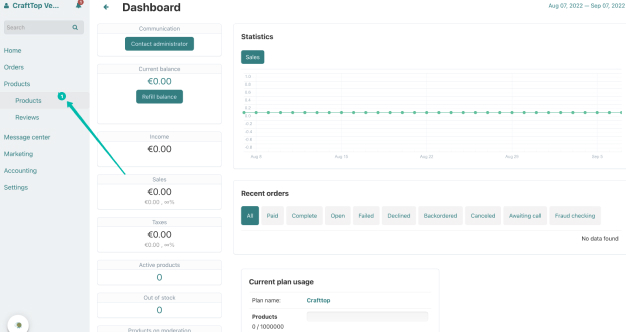
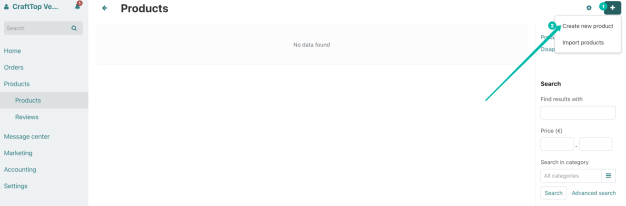
To add your product - go to the PRODUCTS page, as shown in the video and click on the "Create New Product" button in the upper right corner.
You will be taken to a page where you can fill in the details of your product.
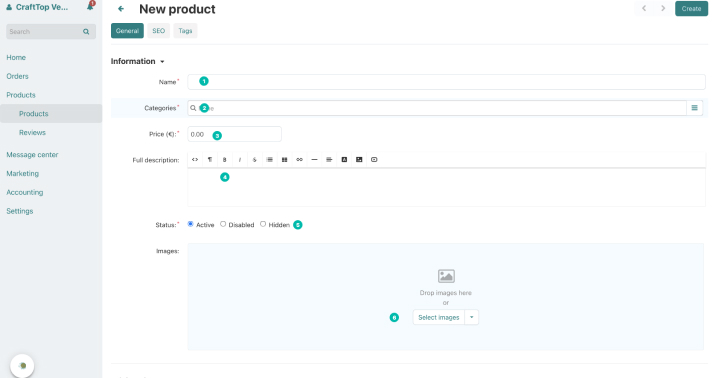
INFORMATION
Here you add the name of the product (1) and select the category (2) where the product will be placed, set your price (3), add a detailed description (4), photos (6) (ATTENTION: photo requirements are written here). You can also mark the availability of goods in your warehouse here (5)
PRICING / INVENTORY
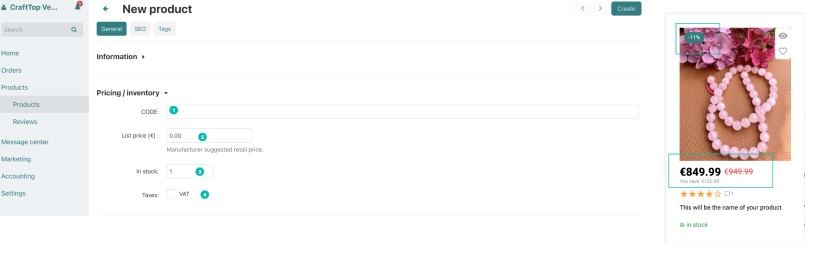
Here you can add CODE of your product (1), a discount to your product in line List price (2). If you add the price lower here, information will appear in your product card that the product is at a discount and a tag will appear on the card, as in the photo below. In the line - In stock (3) - you can add the number of items in stock. In the line - Taxes, you can add tax here (field is optional)
EXTRA
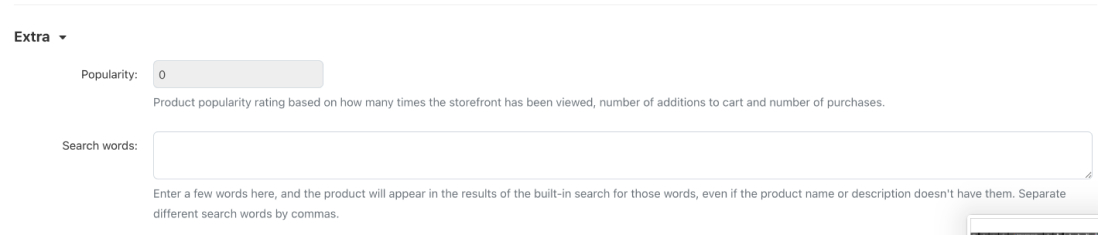
This section displays two fields. The field of your rating, you cannot change it and the field where you can specify the main search keywords by which your product can be found on the site.
IMPORTANT!
After you complete all the steps above and click the CREATE button, your product will appear in the PRODUCTS tab and access to other product settings will open.
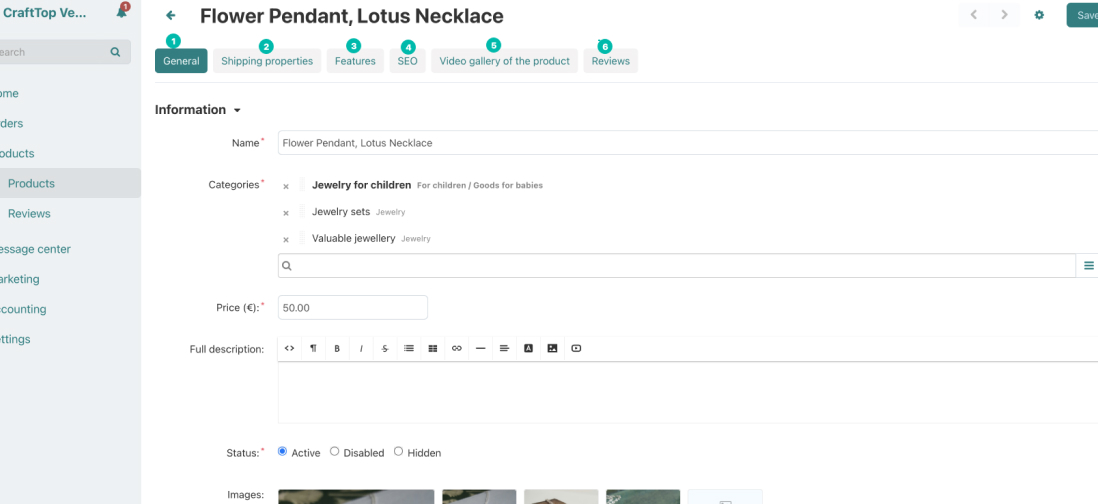
1 GENERAL - a page with general information about the product that you filled out earlier
2 SHIPPING PROPERTIES - here you must specify all the data about the product that are important for calculating the cost of delivery
3 FEATURES - you can choose the condition of the product, how quickly you need to sell it and other characteristics
4 SEO - Here you can add a keyword, how your product is searched for in the search
5 VIDEO GALLERY - Here you can add a video of your product - how to add video - read here
6 REVIEWS - Reviews about your product